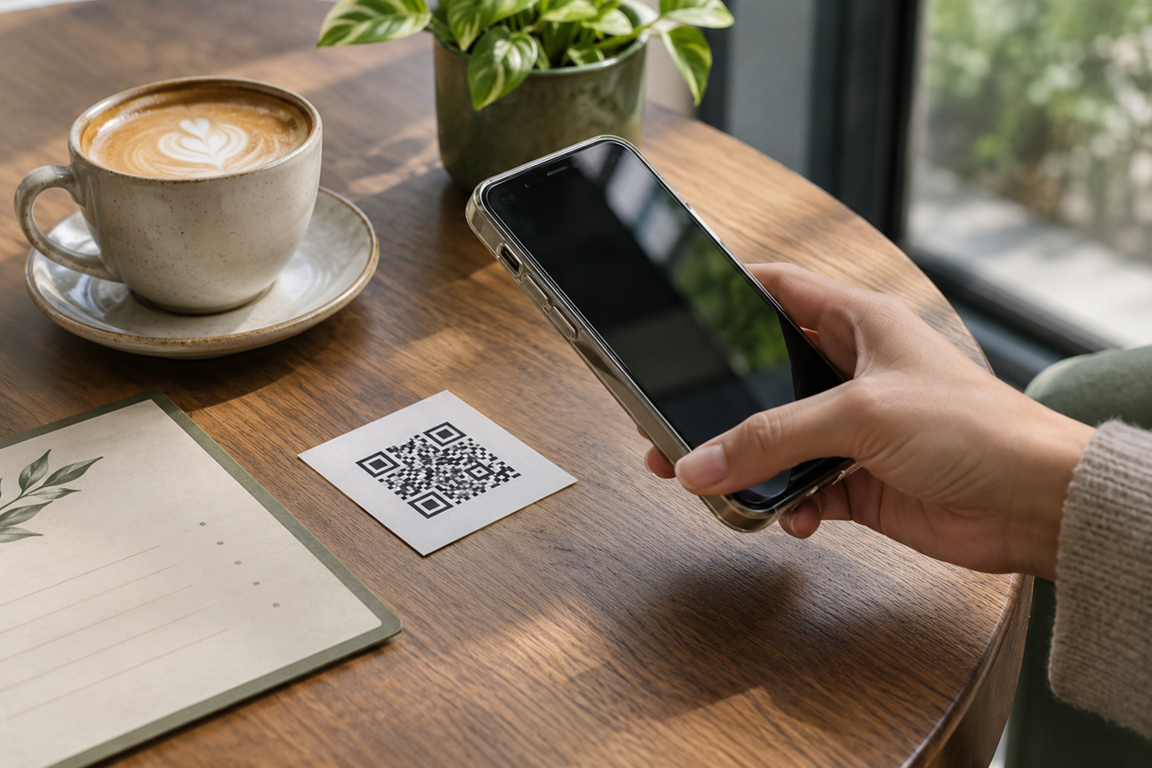
A QR code is only useful if it opens the right thing and scans in the place people will encounter it. Before creating one, decide what someone should see after scanning: a web page, a short message, contact details or Wi-Fi access. That decision determines what the code needs to contain.
Choose content that will still be useful
A QR code can encode more than a website address. The Serynix QR code generator supports website URLs, plain text, email, phone and SMS details, Wi-Fi information, and contact cards. Choose the type first, then enter only the details you intend to share.
For a website, use the complete https:// address and open it yourself before making the code. Check that it works on a phone and leads to the page you want people to reach. A QR code does not make a broken link useful, and a printed static code cannot be edited later if the destination changes.
For contact or message actions, check every field. A typo in an email address or phone number becomes part of the code. Keep the payload concise: longer content creates a denser pattern that can be harder to scan when printed small.
Protect information inside the code
The encoded content is not hidden. Anyone who scans a QR code can inspect the information it contains. This matters especially for a Wi-Fi code: anyone who gets a copy may be able to read the network details, including its password. Share it only where you are comfortable sharing those details, and change the network password if access should no longer be available.
The generator creates a static code locally in your browser. It does not shorten the address or track scans. The destination may still collect information after someone opens it, so consider the website's own privacy practices separately.
Make the printed code easier to scan
- Keep a clear margin around the code. Do not place text, a border or another graphic over that quiet area.
- Use dark modules on a light background with strong contrast.
- Avoid shrinking the code until its individual squares blur together.
- If you place it on a photograph or colored surface, make sure the code remains distinct.
- Include a short label that tells people what they will get, such as “Open the menu” or “Join the guest Wi-Fi”.
Test before you share it
Download or print the code at its intended size. Scan it with a phone camera under the lighting and viewing distance people will actually use. Confirm the result, not just the preview: the correct page should open, the contact details should be right, and the Wi-Fi network should connect as expected.
If a scan fails, make the code larger, increase contrast, shorten its contents or restore the quiet margin. Test again after changing the design. A screenshot of a successful scan is not proof that a small or glossy print will work.
Frequently asked questions
Does a static QR code expire?
The printed pattern itself does not expire. The address, phone number or other destination inside it can change or stop working, and a static code cannot be edited after printing.
Can I change the destination after printing?
Not in the code itself. You would need to create and distribute a new code. If the destination is a web page you control, you may be able to update that page while keeping its address the same.
Should I put a Wi-Fi password in a QR code?
Only if you are comfortable with anyone who can scan or copy the code learning the network details. Do not post a private network code in a place where unintended people can photograph it.