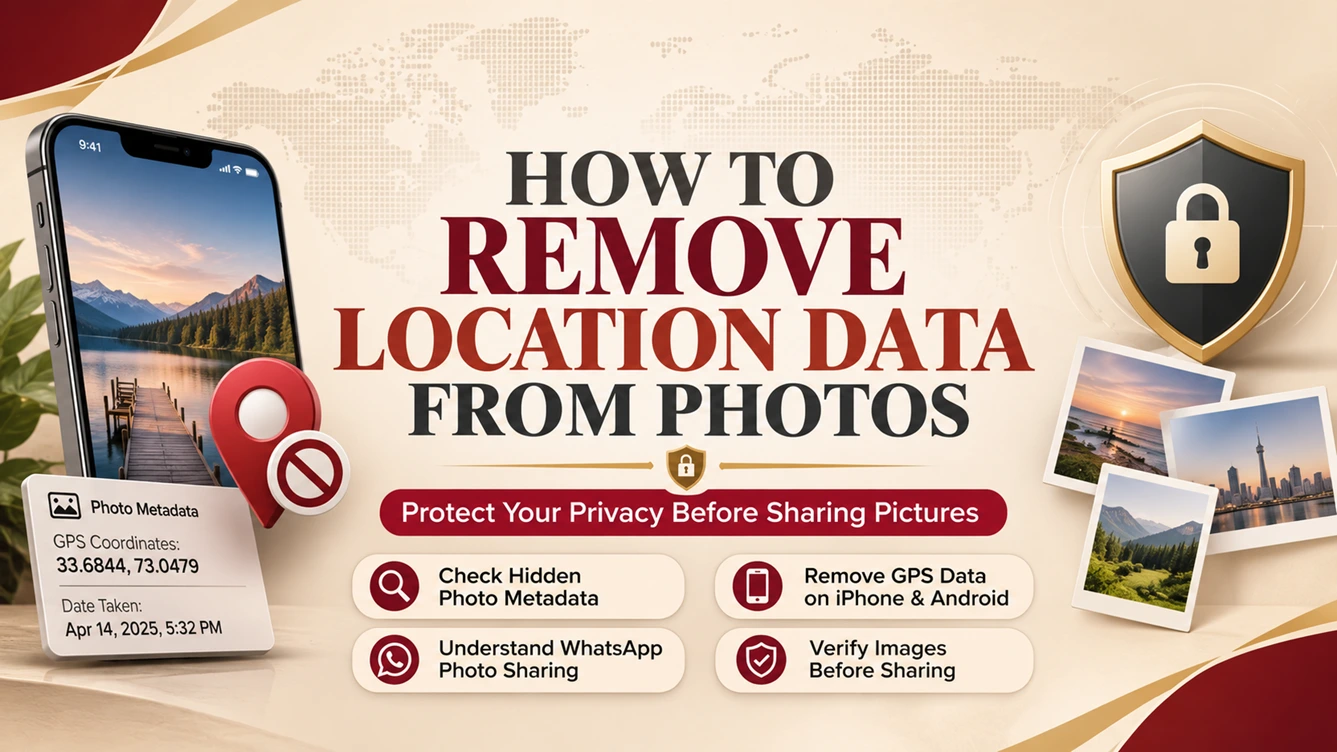
A photo can reveal more than what appears on your screen. Depending on your camera settings, the original image file may contain hidden information about where and when it was taken. This information, known as metadata, can sometimes expose the location of your home, workplace, or another place you would rather keep private.
You can reduce that risk by preventing location tagging on future photos and removing GPS information from copies you plan to share. Turning off location access does not clean pictures you have already taken, and different apps handle image metadata differently.
This guide explains how to check photo metadata, remove GPS information on iPhone and Android, clean image files on Windows and Mac, and share more carefully through Google Photos or WhatsApp. Menu names can change between operating system versions and phone manufacturers, so check the options shown on your device.
What is location data in photos?
Location data is information about where a photograph was captured. It may be stored in the image's metadata, including EXIF (Exchangeable Image File Format) data. When a camera has location permission and geotagging is enabled, it can record GPS coordinates with the image.
Depending on the device and camera settings, metadata may also contain the date and time, device model, lens, and camera settings. Not every photo includes all of these details. The visible picture and its metadata are separate: removing GPS information does not require cropping, blurring, or otherwise changing what the photo looks like.
There is another distinction to keep in mind: a photo app may show a location based on its library or its own estimate, while the image file may contain GPS coordinates embedded by the camera. Removing a location from an app's view does not necessarily remove GPS data from the original file.
Why remove GPS data before sharing?
A photo with embedded coordinates can disclose where it was taken. That may matter when sharing pictures taken at home, photos of children, marketplace listings, or original images sent to clients. A public post can also expose where a person works or spends time if the location is attached to the image file.
Removing GPS metadata is a useful privacy step, but it does not make a photo anonymous. Street signs, landmarks, house numbers, reflections, and repeated details in a series of images may still reveal a location.
How to check photo metadata
Check the specific copy you intend to share. Start with the built-in information panel on your device and look for a map, location, or GPS fields.
On iPhone
- Open the photo in the Photos app.
- Swipe up or tap the Info button.
- Review the location or map information, if shown.
- Check the date, device, and camera details as well if you want to understand what else is attached.
Apple notes that photo sharing can include metadata such as date, time, location, device, and captions. The available controls depend on the sharing method.
On Windows
- Find the image in File Explorer.
- Right-click it and select Properties.
- Open the Details tab.
- Look for GPS fields or location information.
Not every file format or Windows version displays the same fields. If the Details tab has no GPS information, that alone is not proof that every kind of metadata has been removed.
On Mac
In Preview, open the photo and choose Tools > Show Inspector. Review the available GPS or location information if the image contains it. You can also inspect the photo in the Photos app using its Info panel.
How to remove location data from photos on iPhone
You can remove a location from a photo in your library or exclude location information when sharing, where that control is available. These options can vary with iOS version and sharing destination.
Remove location from a photo in your library
- Open the photo in Photos.
- Tap the More button, then choose Adjust Info or Adjust Location, depending on your iOS version.
- Choose the option to remove or set the location to No Location, if shown.
- Reopen the photo's Info panel to check the result.
Apple's current guide also documents editing a photo's location from its information panel. The on-screen choices can vary by version. If you need a separate file for sharing, export or share a copy and verify that copy rather than assuming a change to the library entry changed every existing copy.
Exclude location when sharing
- Select the photo in Photos and tap Share.
- Tap Options in the sharing sheet.
- Turn off Location, if the option is available.
- Continue sharing, then verify the received or exported copy when the information is sensitive.
Apple states that shared photos may include metadata such as location. Some options depend on the destination and transfer method; for example, AirDrop's All Photos Data sends the original file with its edit history and metadata. Do not select it when your goal is to omit the original metadata.
Prevent location tagging on future iPhone photos
- Open Settings.
- Go to Privacy & Security > Location Services.
- Select Camera.
- Set location access to Never.
This prevents the Camera app from receiving location access for future captures. It does not remove GPS data already stored in existing photos.
How to remove GPS data from photos on Android
Camera and gallery controls differ across Android devices. Look in the camera settings for a location option, and check the gallery app for a way to remove location from an existing image.
Turn off location tags for new photos
- Open the Camera app and its Settings.
- Look for Save location, Location tags, Geo-tag photos, or similar wording.
- Turn the setting off.
Google's device-specific camera guidance lists different names and steps for manufacturers. On Samsung phones, the setting is commonly called Location tags. Turning it off affects future photos, not images already taken.
Remove a location from an existing photo
Some gallery apps can remove location information from an existing image. On supported Samsung Gallery versions, try opening the photo, tapping More options > Details > Edit, removing the location, and saving. The exact controls vary by model and software version.
Afterward, check the exported or saved file itself. A location disappearing from the gallery's information panel does not necessarily prove that every copy or metadata field was changed.
What about Google Photos?
Google Photos distinguishes between locations it estimates or that a user adds and GPS information embedded by the camera. Its location editor can change or remove estimated and manually added locations, but Google says it cannot remove location information that the camera originally saved in the file.
If the original camera GPS is present, use a tool that edits the file's metadata or your device's supported removal feature. Google Photos also explains that when you download and email a photo, the original location saved by the device may appear even if you changed how the location is displayed in Photos.
How to remove location data from photos on Windows
Windows File Explorer offers a built-in option to remove available properties from supported image files:
- In File Explorer, right-click the photo and choose Properties.
- Open Details and select Remove Properties and Personal Information.
- Choose Create a copy with all possible properties removed, or choose which properties to remove.
- Save the copy and inspect it before sharing.
Creating a cleaned copy lets you keep the original. Windows may not support every metadata format or field, so verify the resulting file rather than assuming every location-related record was removed. Menu labels can vary by Windows version and file type.
How to remove location metadata from photos on Mac
On a Mac, use the location controls available in Photos to remove a location from the library item, where supported. For a separate file, export a copy and inspect that copy in Preview or another metadata viewer before sharing it. A location hidden in a photo library is not necessarily the same as GPS data removed from an exported original.
Keep the untouched original if you may need its location for your own records. Do not overwrite it until you have checked the copy you intend to send.
Does WhatsApp remove photo location data?
Do not rely on WhatsApp as your metadata-removal step. Sending an image through a messaging app may resize or re-encode it, while sending it as a document is intended to send the file. The result can depend on the app version, options, and route, and WhatsApp does not provide a field-by-field guarantee that GPS information is removed in every case.
| WhatsApp sharing method | Privacy consideration |
|---|---|
| Regular photo | The app may process or compress the image; do not assume that this removes every metadata field. |
| HD photo | Higher image quality does not guarantee that location metadata is removed. |
| Document or file | Treat it as the original file and assume embedded metadata may remain. |
For sensitive photos, remove GPS data from a copy before opening WhatsApp, then inspect the version you send or receive. The same precaution applies to email, cloud storage, and other services that may preserve the original file.
How to verify location data was removed
- Save or export the cleaned image as a separate file.
- Open that exact copy in a metadata viewer or your device's file-information panel.
- Check for GPS coordinates, a map, or other location fields.
- If you shared it through an app, download the received copy and inspect that too.
- Review the visible image for signs, landmarks, house numbers, reflections, or other location clues.
Removing GPS data does not necessarily remove all EXIF, XMP, or IPTC metadata. If you want to remove device details or timestamps too, choose a method that explicitly supports those fields and check the result.
Frequently asked questions
How do I remove location data without changing how the photo looks?
Use a feature that edits metadata, then save a separate copy. Removing GPS information does not inherently change the visible pixels, but some apps re-encode images during export. Compare the output with the original and inspect its metadata before sharing.
Does removing GPS data reduce photo quality?
Removing metadata alone does not inherently reduce image resolution or visual quality. An app may also compress or re-encode the image, which can affect quality independently. Keep the original and compare the cleaned copy.
Does taking a screenshot remove location data?
A screenshot creates a new image and generally does not copy the original camera file's EXIF GPS fields. It may still reveal location through visible details, and the screenshot can contain its own date, device, or other metadata. Verify it before sharing.
Can I remove location data from multiple photos at once?
Some gallery and file-management tools support batch editing. Windows may let you select multiple compatible images before using Remove Properties and Personal Information. Check a sample of the output and confirm the tool supports the file formats you selected.
Does turning off location access clean old photos?
No. Turning off camera location access helps prevent future geotagging. Previously captured files keep their existing metadata until you remove it separately.
Should I remove all photo metadata or only GPS information?
That depends on your privacy needs. Removing GPS addresses the embedded location concern, but device details, capture times, captions, and other metadata may remain. Choose a method that lists the fields it removes and verify its output.
Final thoughts
Photos can carry hidden GPS coordinates as well as visible clues about where they were taken. Check the file, remove location information from a copy using a method suited to your device, and inspect that copy before sharing.
Turning off camera location access helps with new photos but does not clean old ones. Google Photos and messaging apps may display, transform, or share images differently, so do not treat an app's location display as proof that the original file is clean. For sensitive images, verify the exact file you plan to send.