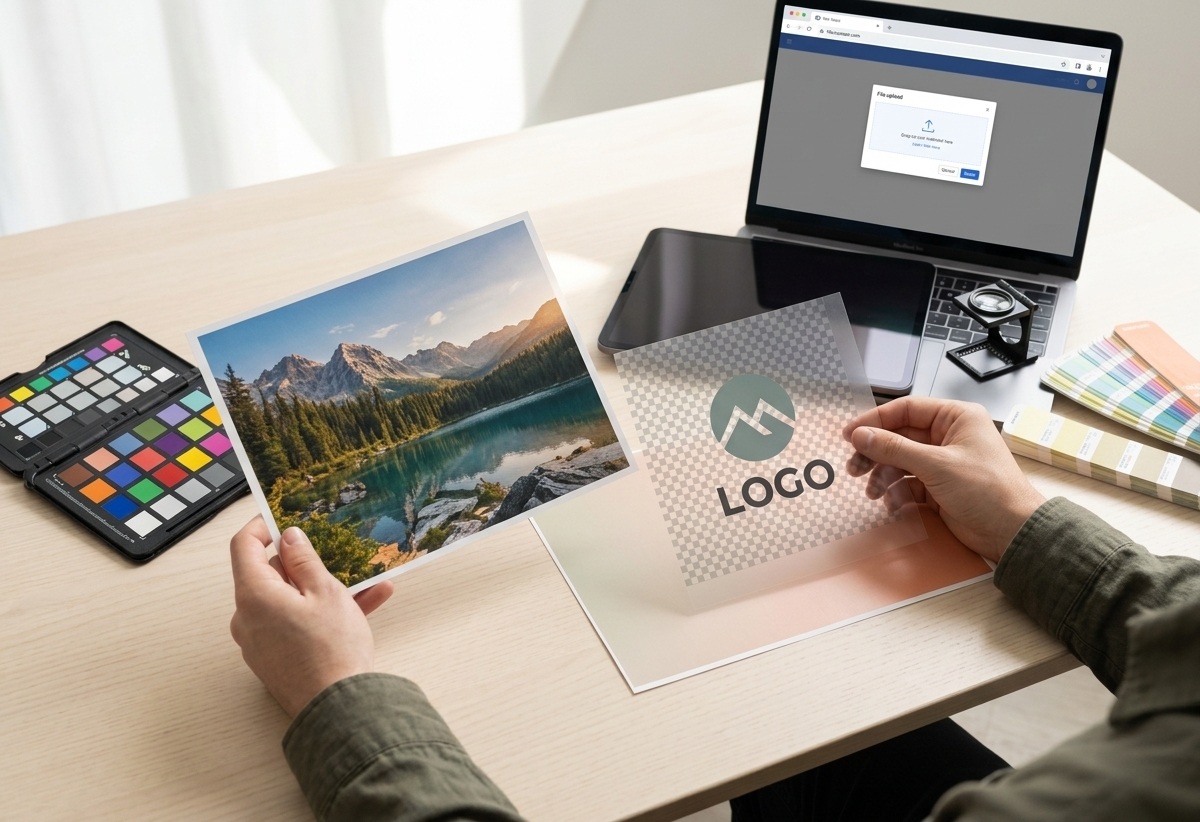
An image can look fine on your screen and still be the wrong format for the job. A transparent logo saved as JPEG gets a solid background; a photograph saved as a large PNG may use more space than you need. The useful question is not “Which format is best?” but “What does this image need to do?”
Start with the image itself
For a photograph, subtle gradients and natural texture matter. For a logo, diagram or screenshot, crisp edges and transparent areas may matter more. Check those qualities before choosing an output.
PNG
PNG uses lossless encoding, so it preserves the pixel values when saved. It supports transparency and is a practical choice for interface graphics, screenshots and images with sharp edges. A photographic PNG can be much larger than a lossy alternative, so compare the actual file size rather than assuming the format is efficient for every picture.
JPEG
JPEG is widely supported and commonly used for photographs. It uses lossy compression: reducing the quality setting can discard visual information, and repeatedly saving edited JPEGs can add further degradation. JPEG does not support transparency, so transparent pixels must be filled with a background color.
WebP
WebP supports both lossy and lossless image encoding and can preserve transparency. It is often a useful web delivery format, but check that the platforms and workflow receiving the file accept it. The converter only offers formats that the current browser can export reliably.
BMP and AVIF
BMP is a simple format that can create very large files, so use it when a specific older workflow asks for it rather than as a default for a website. AVIF can produce compact images, but support varies across software and browsers. Check the destination before choosing either format.
Convert the image, not just its name
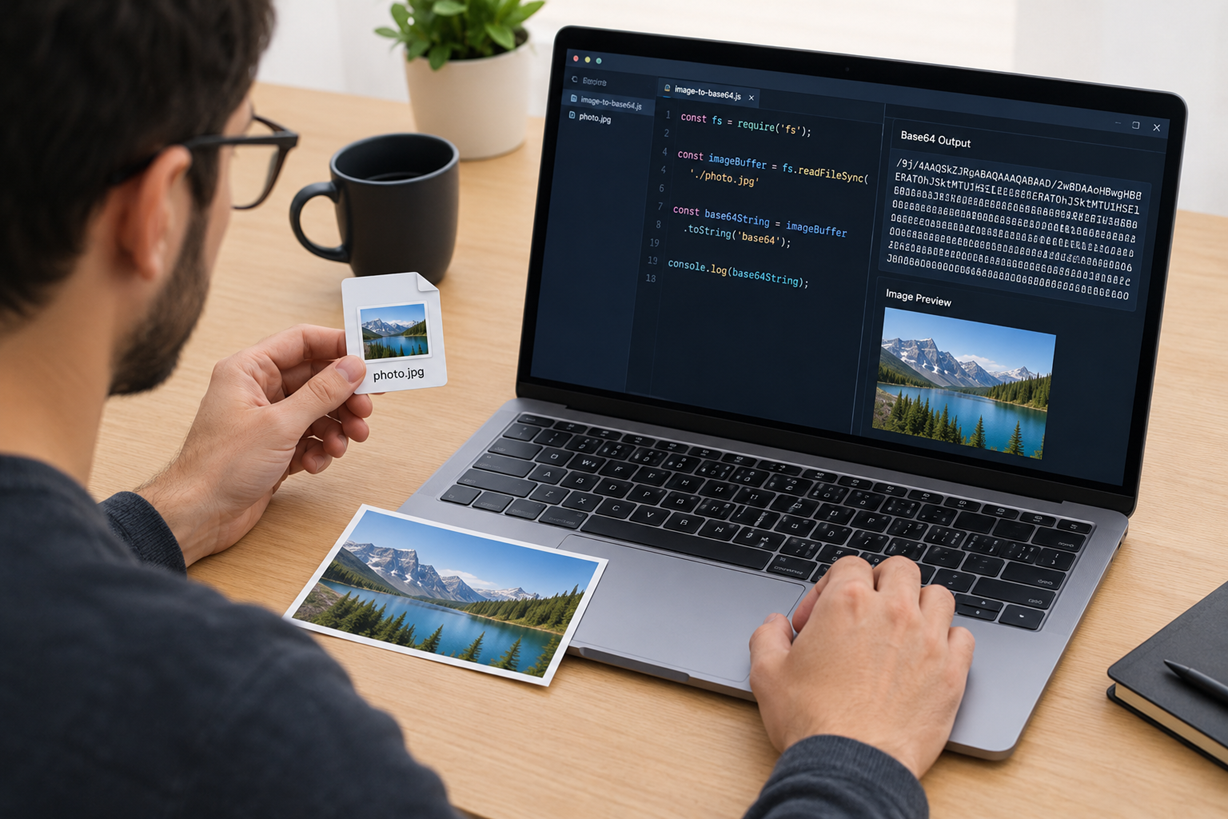
Changing photo.png to photo.jpg does not convert the image. The file must be decoded and encoded in the new format. The Serynix image format converter does that in your browser and shows a preview of the result.
- Add the image and confirm the detected source format.
- Choose an available output format that fits its purpose.
- Review the preview, especially transparent areas and fine edges.
- Download the result and open it in the application that will use it.
Animated images need special care. Converting a still frame is not the same as preserving animation; this converter rejects animated inputs rather than silently turning motion into a still image. SVG is also not converted by this tool.
A few practical choices
- Use PNG when transparency or clean, hard-edged graphics matter more than a small file.
- Use JPEG for a photo when broad compatibility matters and a solid background is acceptable.
- Consider WebP for web images when the destination supports it, then inspect the result at its intended display size.
- Keep an untouched original before converting. A lossy export cannot restore details that were discarded.
One image can have different requirements in different places. A print workflow, an older document editor and a web page may not accept the same formats. Ask what the destination supports, then convert a copy rather than replacing your source.
Frequently asked questions
Is WebP always smaller than PNG or JPEG?
No. File size depends on the image, encoder and settings. A photograph, a flat icon and a transparent illustration behave differently. Compare the output and make sure the visual quality is still suitable.
Will converting an image keep transparency?
PNG and WebP can preserve transparency. JPEG cannot, so transparent areas are filled with a background. Check the preview before using an output that does not support alpha transparency.
Can I convert an animated GIF without losing its motion?
Not with this still-image converter. It rejects animated inputs so the motion is not silently discarded. Use a workflow designed to preserve animation if that is required.