An image can look too large in a document, miss an upload limit or have the wrong shape for a profile slot. Resizing changes the pixel dimensions of the image. It does not automatically make the picture sharper, and the method you choose determines whether the whole scene stays visible.
Understand pixels and aspect ratio
Pixel dimensions describe the image file's width and height. The aspect ratio is the relationship between those two numbers. A 1200 by 800 image has a 3:2 ratio; a square image has equal width and height.
If you change width without accounting for height, people and objects can look unnaturally narrow or wide. Before resizing, check whether the destination asks for exact dimensions, a maximum size or a particular shape. Those instructions call for different choices.
Choose fit, crop or stretch
- Fit keeps the whole image inside the requested box and preserves its proportions. One edge may end up shorter than the box.
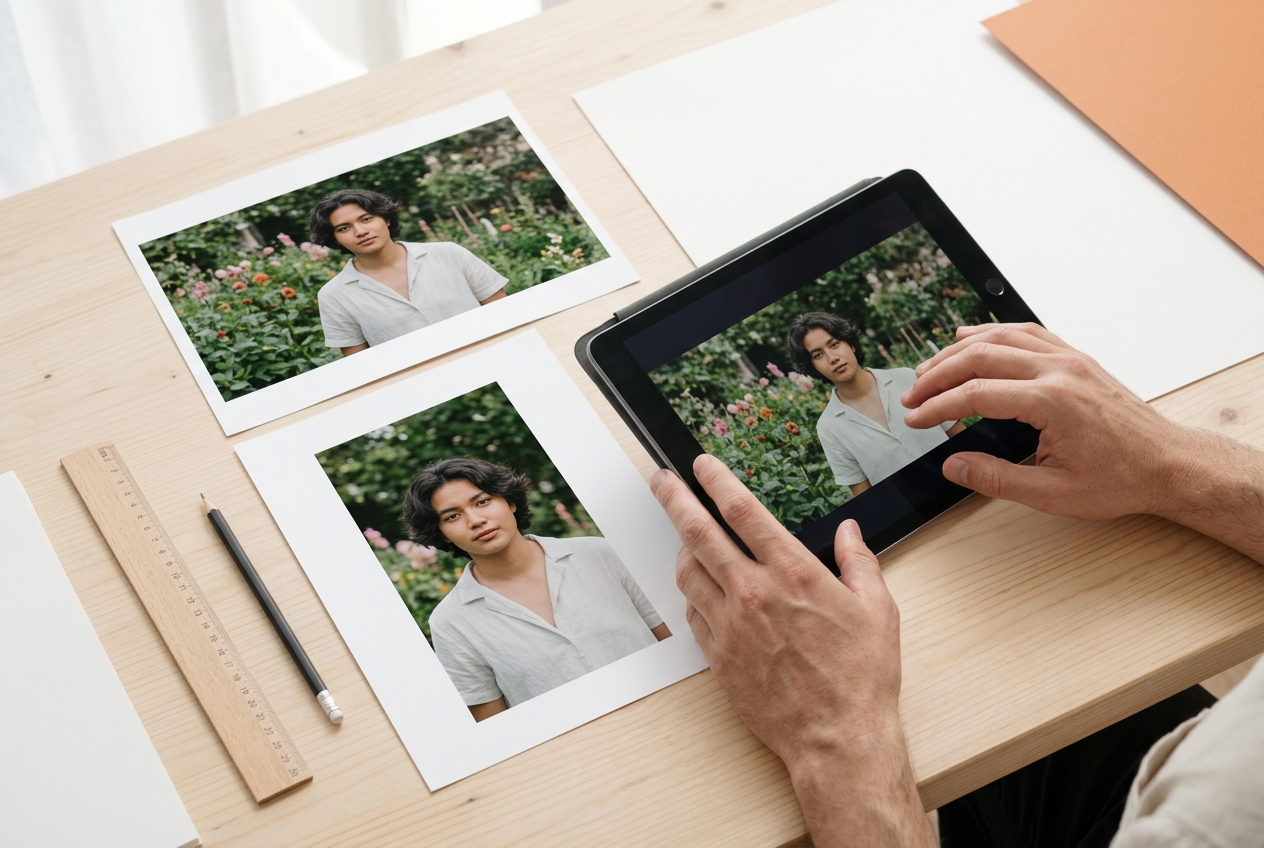
- Crop fills the box by trimming part of the source image. The output reaches the requested dimensions, but some content is removed.
- Stretch fills the requested dimensions using the whole image, changing its proportions when the source and target shapes differ.
The Serynix image resizer lets you work with pixel dimensions or a percentage and review these modes before downloading. Use fit when no important content should be lost, crop when the frame matters more than the edges, and stretch only when changing the shape is acceptable.
Resize for the place the image will appear
For a website, think about the largest size the image will actually occupy. A full-width article image may need more pixels than a small profile thumbnail. For a form, follow the stated limits instead of guessing. For a social profile or card, check the crop preview because the platform may display only a square or a narrow slice.
When cropping a portrait or product, check that the subject remains inside the frame. When fitting a landscape image into a square, empty space around it is expected: fit preserves the image rather than cutting off its sides.
Check the result at full size
After resizing, view the output at a useful zoom. Look for softened text, rough edges and a crop that removes relevant context. Enlarging a small source spreads its existing pixels across a larger area; it cannot reconstruct details that were never captured.
Resizing and compression solve different problems. Resizing changes dimensions; compression changes how the image data is encoded. If a file still exceeds a byte limit after resizing, compare an appropriate compressed format as a separate step and keep the original until you have checked the result.
Frequently asked questions
What does “preserve aspect ratio” mean?
It means the width and height change in the same proportion, keeping the image's shape. The whole image remains undistorted, although it may not fill a box with a different shape.
Should I crop or fit an image?
Fit when the complete image matters. Crop when the destination requires a particular frame and the parts removed at the edges are not important. Review the preview before using a crop.
Does increasing the pixel dimensions improve quality?
No. Upscaling can make a file larger, but it cannot restore details that were absent from the source. If possible, start with a higher-resolution original.